UDN
Search public documentation:
MotionBlur
日本語訳
中国翻译
한국어
Interested in the Unreal Engine?
Visit the Unreal Technology site.
Looking for jobs and company info?
Check out the Epic games site.
Questions about support via UDN?
Contact the UDN Staff
中国翻译
한국어
Interested in the Unreal Engine?
Visit the Unreal Technology site.
Looking for jobs and company info?
Check out the Epic games site.
Questions about support via UDN?
Contact the UDN Staff
UE3 Home > Post Process Effects > MotionBlur Post Process Effect
UE3 Home > Cinematic Artist > MotionBlur Post Process Effect
UE3 Home > Cinematic Artist > MotionBlur Post Process Effect
MotionBlur Post Process Effect
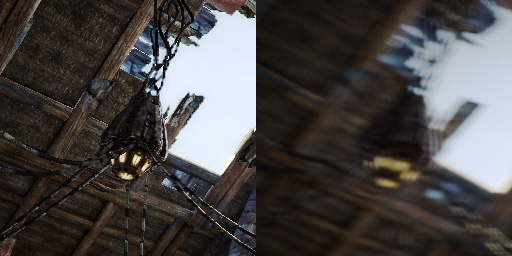 |
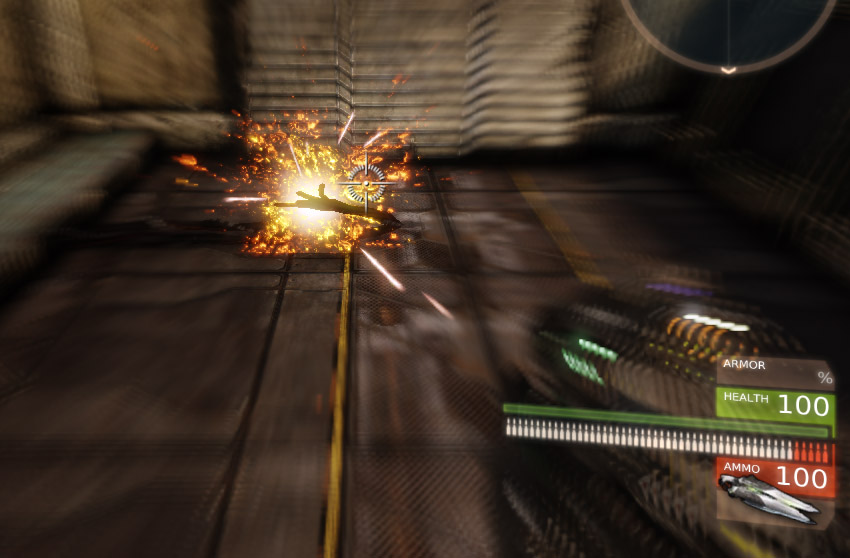
| Left: without motion blur Right: with motion blur (and quick camera movement) |
Overview
Implementation
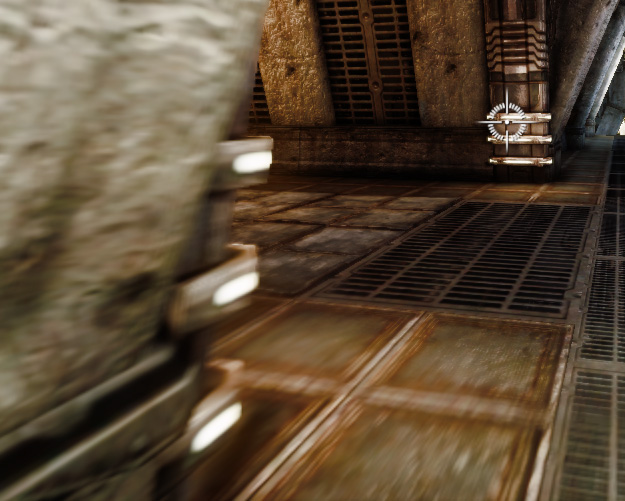 |
| A forward moving player perceives motion blur mostly near the image corners. You can see the full resolution image softly blends with half resolution motion blur image. |
 Note that rotating the player view results in motion blur. That is expected but might be not what the player likes to see. Normally the eye would focus on some interesting points in the image and follow them.
For the eye the motion blur would disappear. In order to simulate this effect we would have to do proper eye tracking or simulate eye behavior (likely to fail in many cases). Alternatives: less motion blur, mask
the motion blur to affect mostly the outer areas of the screen, limit motion blur for critical game play cases, higher frame rate.
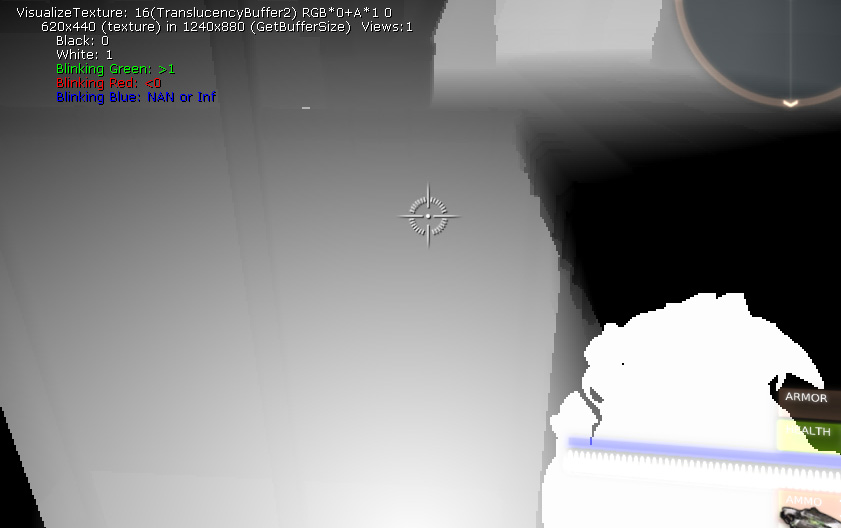
For camera motion blur the 2D motion vector can be computed on the fly way from the previous view matrix, the current view matrix and the pixel depth. For object motion blur we compute the vector per pixel by rendering the geometry of all motion blurred objects (small objects and slowly moving objects are culled for performance reasons) into the so called velocity texture. The data in this texture can be seen when using the VisualizeTexture console command:
Note that rotating the player view results in motion blur. That is expected but might be not what the player likes to see. Normally the eye would focus on some interesting points in the image and follow them.
For the eye the motion blur would disappear. In order to simulate this effect we would have to do proper eye tracking or simulate eye behavior (likely to fail in many cases). Alternatives: less motion blur, mask
the motion blur to affect mostly the outer areas of the screen, limit motion blur for critical game play cases, higher frame rate.
For camera motion blur the 2D motion vector can be computed on the fly way from the previous view matrix, the current view matrix and the pixel depth. For object motion blur we compute the vector per pixel by rendering the geometry of all motion blurred objects (small objects and slowly moving objects are culled for performance reasons) into the so called velocity texture. The data in this texture can be seen when using the VisualizeTexture console command:
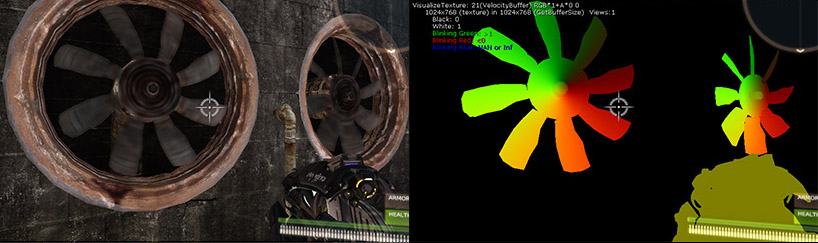 |
| Left: Rotating blades as seen in the game. Right: The same scene shown with the VisualizeTexture console command. |
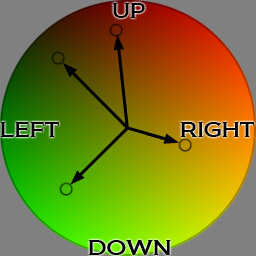 |
| The color in the velocity texture indicates the object motion. Black is reserved for camera/no object motion. The blue and alpha channel might be used by the radial blur feature. |
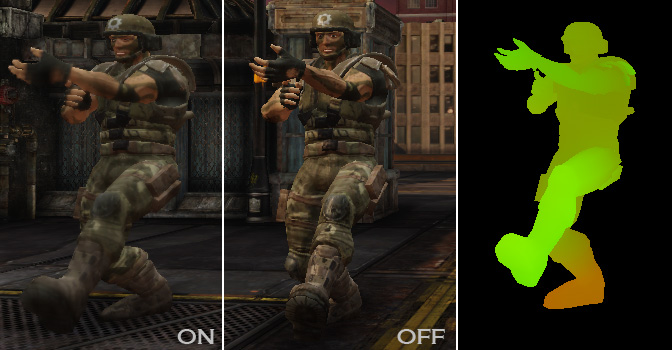 |
| Motion blur skinning allows to have parts of the body moving in different directions. |
Directional blurring
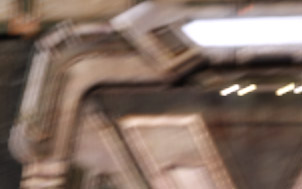 |
| Bright objects (HDR content) appear brighter thanks to motion blur. |
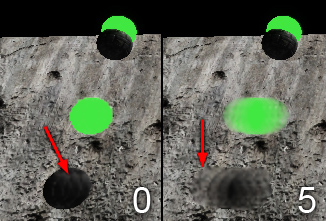 |
| SoftEdge allows motion blur to appear outside of the moving object. |
Tweaking the parameters
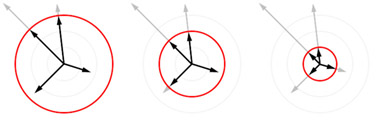
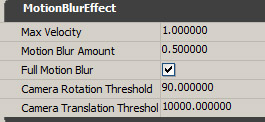 The Max Velocity limits the motion in a disk with the specified size (scales with the screen width, always circular no matter what height). The value is a multiplier to some internal constant of a reasonable size. A number below 1 limits the vectors further, bigger than 1 allows stronger blur but as we keep the same sample count the result suffer (multiple images).
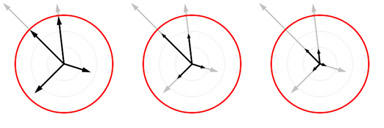
 The Motion Blur Amount allows to scale the motion blur vectors. It's better to tweak this value first and leave the Max Velocity clamp higher otherwise you don't even see the change in the scale. You might end up with a high amount clamped very at a small radius. Even small motions will result in blurrring and the overall effect might be worse than having motion blur disabled.
 The Full Motion Blur checkbox allows to disable camera motion blur. Object motion blur will still be active.
The Camera Rotation Threshold the maximum angle them camera can rotate at maximum until the camera motion blur is disabled (this is useful for camera cuts).
The Camera Translation Threshold the distance camera can move at maximum until the camera motion blur is disabled (again useful for camera cuts).
Note that the settings in the chain can be overwritten by post processing volumes.
In the Actor you can find the Motion Blur Scale. That value was once needed to disable motion blur on object that move with the camera (e.g. platforms). This is no longer needed as the motion blur now correctly handles such relative movements. The value will be removed soon or reactivated if we realize me miss some cases with the new implementation.
The Full Motion Blur checkbox allows to disable camera motion blur. Object motion blur will still be active.
The Camera Rotation Threshold the maximum angle them camera can rotate at maximum until the camera motion blur is disabled (this is useful for camera cuts).
The Camera Translation Threshold the distance camera can move at maximum until the camera motion blur is disabled (again useful for camera cuts).
Note that the settings in the chain can be overwritten by post processing volumes.
In the Actor you can find the Motion Blur Scale. That value was once needed to disable motion blur on object that move with the camera (e.g. platforms). This is no longer needed as the motion blur now correctly handles such relative movements. The value will be removed soon or reactivated if we realize me miss some cases with the new implementation.
Interaction with motion blur
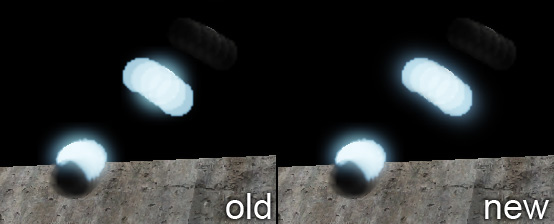 |
| Note that withe the new method the bloom appears dimmer and is more spread over the path of the moving object. |
The effect becomes visible with quickly moving objects or fast camera movement and the right settings (big max velocity, big motion blur amount, bloom threshold vs. object brightness MotionBlurSoftEdge). Then bright content that was blooming before is more spread out and this can also make the motion blur appearing less prominent.
Known limitations and issues
- Camera cuts like the ones done in Matinee are problematic for motion blur. We currently rely on the motion blur getting disabled with bigger camera rotations or translations. The threshold for both values can be use customized. Ideally Matinee would generate an event so there is one less point for a user error. However even if that gets fixed there might be others remaining (e.g. game code). Ideally we always move the camera and a jump or camera switch is handled differently. This is a bit more tricky to implement as the camera object is getting recreated each frame (per view).
- High high max velocity results in appears as multiple images (We tried to randomize this per pixel but the result wasn't good enough. More samples help at the cost of performance so we might add an option for that).
- Motion blur is based on half resolution scene input and renders to a half resolution texture that is getting upsampled in the uber post processing pass. That can be visible. Tweaking the masking might help (not exposed yet).
- For better editing experience we have motion blur disabled in the editor. This also affect the Radial blur.
Useful console commands
-
show postprocess - to enable/disable the postprocessing altogether
-
VisualizeTexture - to look at the intermediate buffers (e.g. half resolution motion blur input, velocity texture or the motion blur output)
-
MotionBlurMaxVelocity - to override the postprocess setting (for tweaking and debugging)
-
MotionBlurAmount - to override the postprocess setting (for tweaking and debugging)
-
MotionBlurSoftEdge - see MotionBlurSoftEdge
-
MotionBlurSkinning - see MotionBlurSkinning
-
set skeletalmeshcomponent bforcerefpose 1 - to disable skinning for the animated objects
-
slomo 0.1 - to slow down the world simulation (1 to set it back to the default value)