UDN
Search public documentation:
FBXBestPractices
日本語訳
中国翻译
한국어
Interested in the Unreal Engine?
Visit the Unreal Technology site.
Looking for jobs and company info?
Check out the Epic games site.
Questions about support via UDN?
Contact the UDN Staff
中国翻译
한국어
Interested in the Unreal Engine?
Visit the Unreal Technology site.
Looking for jobs and company info?
Check out the Epic games site.
Questions about support via UDN?
Contact the UDN Staff
UE3 Home > FBX Content Pipeline > FBX Best Practices
FBX Best Practices
Overview
Static Mesh Workflow
- Export the mesh to an FBX file from your 3D application.
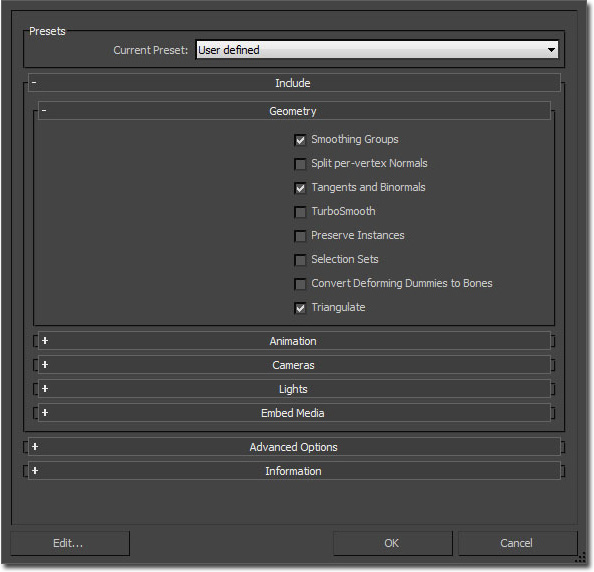
- Common export settings used by artists at Epic include:
- Smoothing Groups enabled
- Tangents and Binormals enabled
- Preserve Edge Orientation enabled
- Common export settings used by artists at Epic include:
- Import the FBX file using the Content Browser in UnrealEd.
Useful Links
Skeletal Mesh Workflow
- Export the mesh and skeleton to an FBX file.
- Select the items you want to export (mesh and joint chain root) and 'export selected'.
- Common export settings used by artists at Epic include:
- Smooth Mesh disabled
- Smoothing Groups enabled
- Import the FBX file using the Content Browser in UnrealEd.
Useful Links
Animation Workflow
- Export the animation to an FBX file.
- Select the items you want to export (joint chain root, mesh if desired) and 'export selected'.
- Export settings:
- Animation enabled
- Import the FBX file in the AnimSet Editor in UnrealEd.
Useful Links
Morph Target Workflow
- Export the morph target(s) to an FBX file.
- Select the items you want to export (mesh with blendshapes/morpher modifier) and 'export selected'.
- Export settings:
- Animation enabled
- Deformed Models/Deformations enabled - all options
- Import the FBX file in the AnimSet Editor in UnrealEd.
Useful Links
Naming Schemes
- Static Meshes: SM_<PackageName>_<AssetName>_<Index>
- Skeletal Meshes: SK_<PackageName>_<AssetName>_<Index>
Scene Management
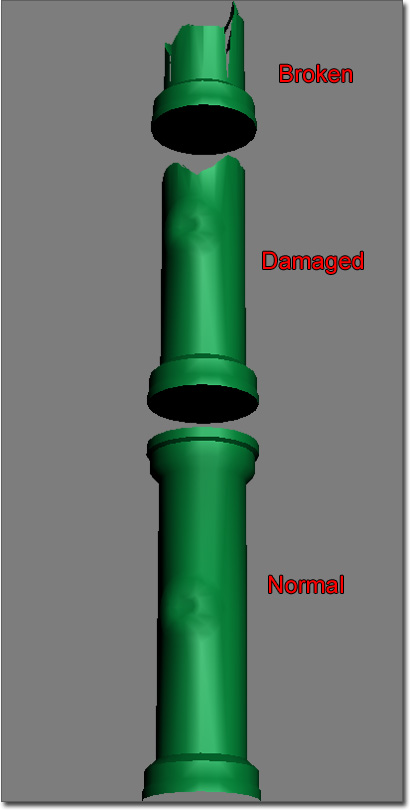 It's easier to have a clean "export" file which is the mesh bound to the skeleton. This mesh will only be used for exporting. The rig is built from this file, but saved into a separate rig file.
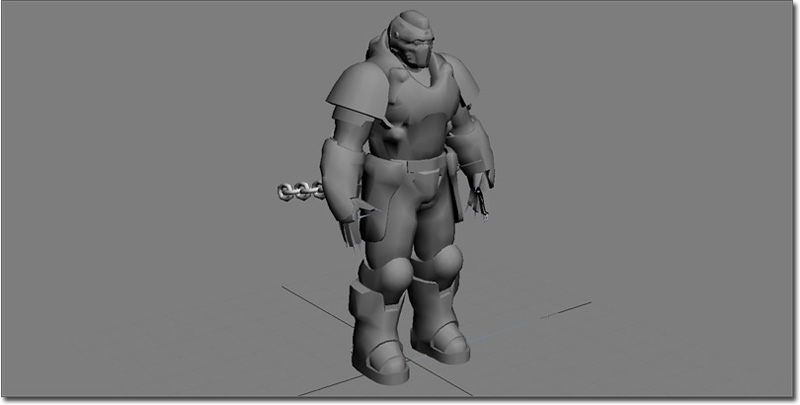 Separate rig file.
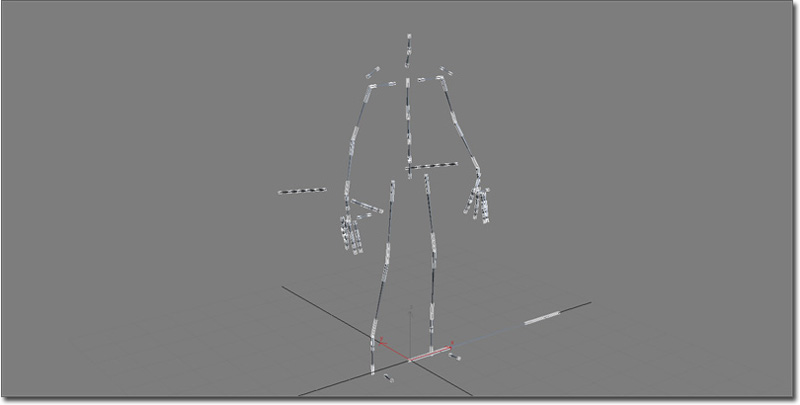 Each animation is usually stored in its own file as well so that it is simple to keep track of all the different animations in the file system.
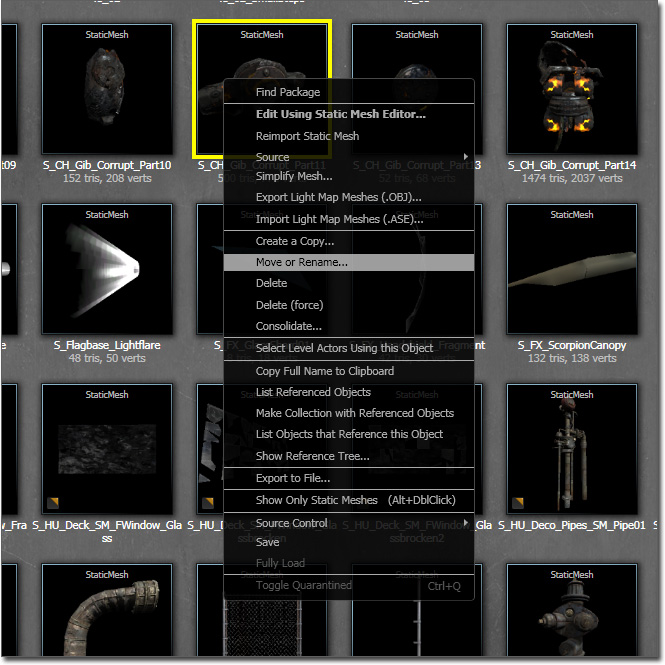
Renaming Content in UnrealEd
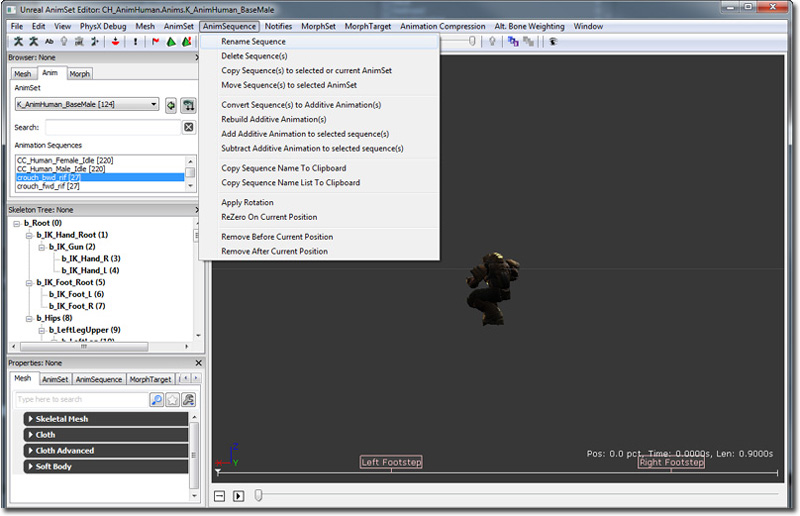
 For animations, you can rename them in the AnimSet Viewer under "Anim Sequence" -> "Rename Sequence".
Useful Links
Whole Scene Import/Export
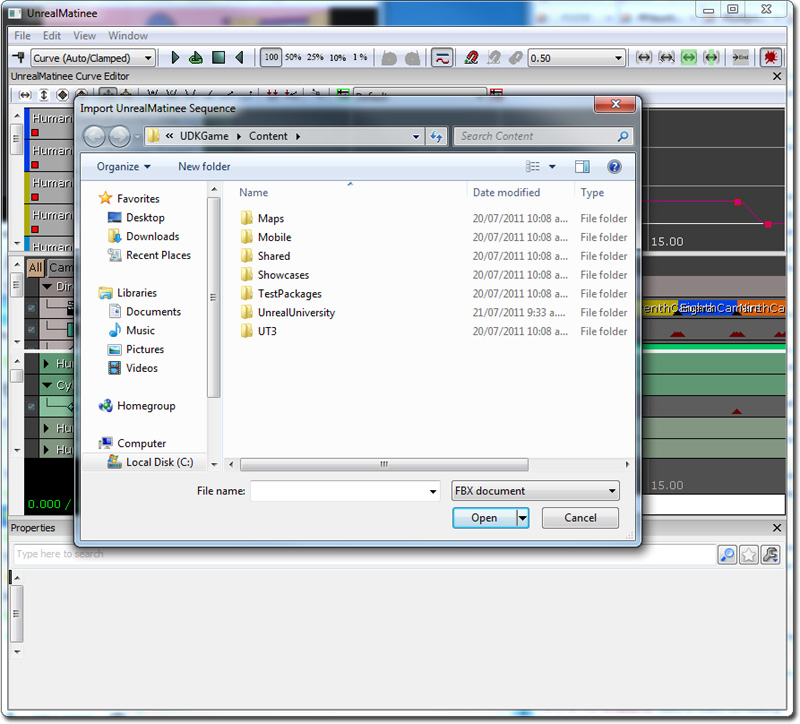
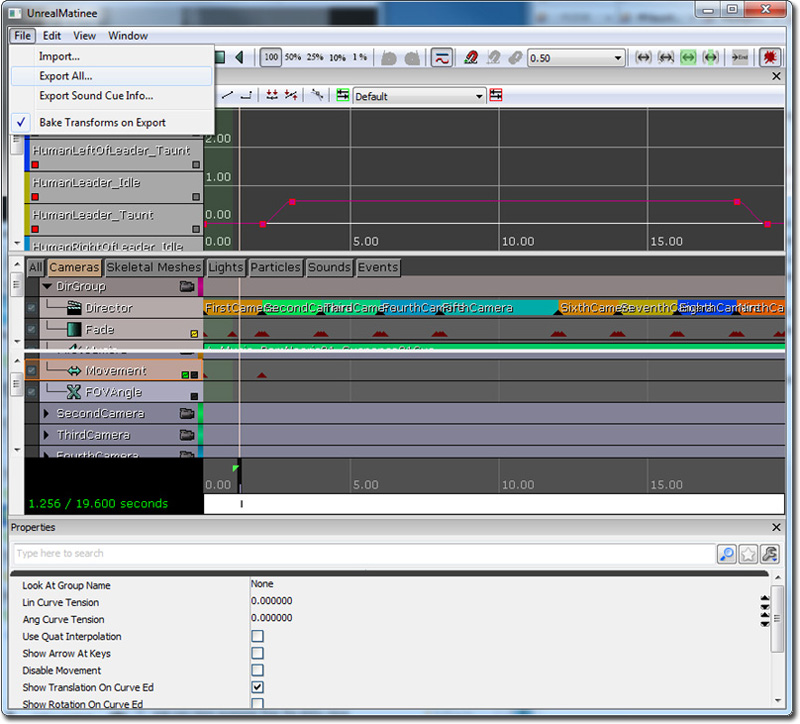 Select the FBX format, give it a name and click OK.
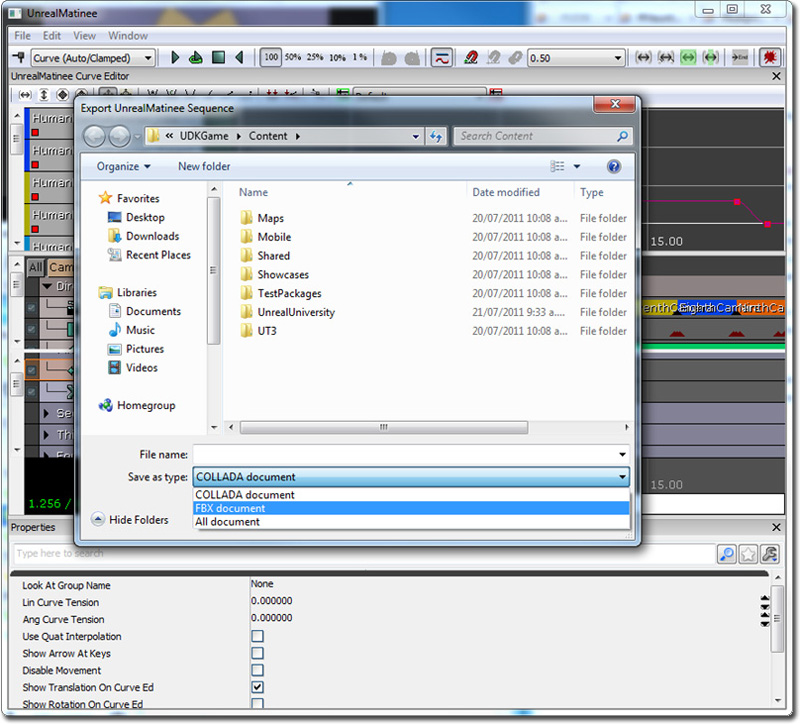 In the same Matinee window, you can also import or reimport FBX data.