UDN
Search public documentation:
SkeletalMeshSimplificationTool
日本語訳
中国翻译
한국어
Interested in the Unreal Engine?
Visit the Unreal Technology site.
Looking for jobs and company info?
Check out the Epic games site.
Questions about support via UDN?
Contact the UDN Staff
中国翻译
한국어
Interested in the Unreal Engine?
Visit the Unreal Technology site.
Looking for jobs and company info?
Check out the Epic games site.
Questions about support via UDN?
Contact the UDN Staff
Skeletal Mesh Simplification Tool
How It Works
Summoning the Tool Window
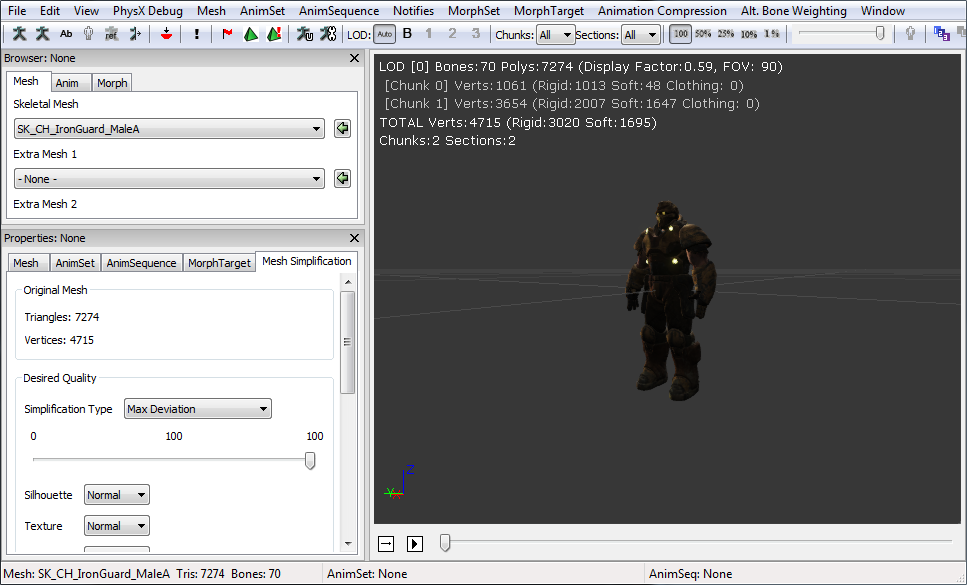
Simplifying a Mesh
 Select your desired simplification settings and click the Simplify LOD button. The mesh will be immediately updated in both the AnimSet Editor and other editor viewports.
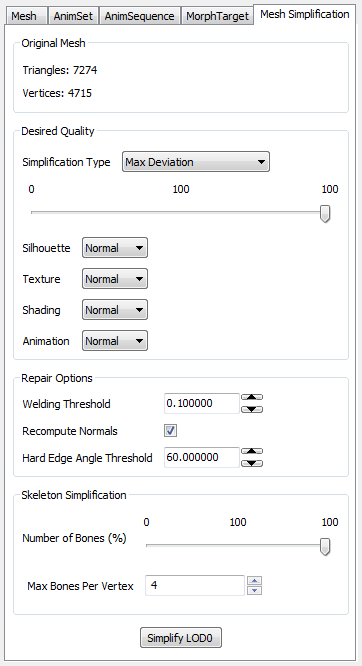
Simplification Settings
Simplification Type. Specifies the method to use to determine the quality or complexity of the resulting LOD mesh:| Type | Description |
| Max Deviation | The maximum deviation from the base mesh as a percentage of the bounding sphere. The editor uses the desired quality to compute an error metric for the mesh. This error metric prevents the tool from simplifying a mesh such that the surface of the new mesh deviates too much from the surface of the source mesh. The advantage to this approach is that the tool can intelligently optimize the mesh within some deviation of the source mesh without stopping at an arbitrary triangle limit. |
| Number of Triangles | The editor simplifies the mesh until it has the exact number of triangles specified. |
Generating an LOD
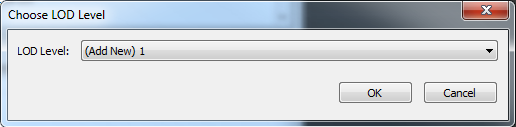 Next you will be asked to select the constraints for generating the LOD:
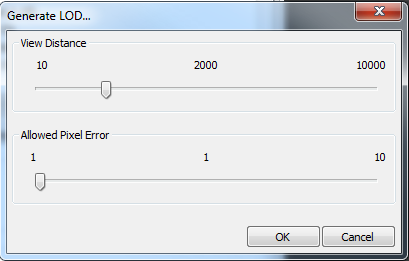 Select the distance at which you wish to swap in this LOD, then select how many pixels the LOD is allowed to deviate from the source mesh. Finally, click OK to generate the LOD.
The editor will compute the quality metric for you when generating an LOD. The allowed pixel error tells the editor how many pixels you're comfortable with the mesh popping at a given distance. As an example, if you set the distance to 2000 and the allowed pixel error at 1, then the generated LOD will not deviate by more than 1 pixel from the source mesh when viewed from 2000 units away. This computed metric is an approximation. It makes some assumptions about the size of the backbuffer (1280x720 is assumed) and the field of view (90 degrees is assumed). This approximation is meant as a starting point from which you can fine tune the quality of the generated LOD.
When an LOD is generated in this manner the editor will automatically set the Display Factor for the LOD so that the LOD is swapped in at the distance you chose when generating it.
After generating an LOD you will probably want to tweak its quality. Simply follow the instructions for simplifying a mesh and make sure you select the LOD that you generated.
Select the distance at which you wish to swap in this LOD, then select how many pixels the LOD is allowed to deviate from the source mesh. Finally, click OK to generate the LOD.
The editor will compute the quality metric for you when generating an LOD. The allowed pixel error tells the editor how many pixels you're comfortable with the mesh popping at a given distance. As an example, if you set the distance to 2000 and the allowed pixel error at 1, then the generated LOD will not deviate by more than 1 pixel from the source mesh when viewed from 2000 units away. This computed metric is an approximation. It makes some assumptions about the size of the backbuffer (1280x720 is assumed) and the field of view (90 degrees is assumed). This approximation is meant as a starting point from which you can fine tune the quality of the generated LOD.
When an LOD is generated in this manner the editor will automatically set the Display Factor for the LOD so that the LOD is swapped in at the distance you chose when generating it.
After generating an LOD you will probably want to tweak its quality. Simply follow the instructions for simplifying a mesh and make sure you select the LOD that you generated.
Simplygon®
 Simplygon is used to automatically generate game-ready Level of Detail models (LODs) for a specific pixel resolution by removing as much information as possible without degrading LOD quality for a certain onscreen size. Simplygon uses a proprietary mesh reduction method that retains geometrical LOD integrity and visual quality of LOD switching, producing AutoLODs that can directly be used inside triple-A games.
Unreal Engine 3 leverages Simplygon to provide high-quality mesh reduction without having to leave the Unreal Editor. Developers can quickly simplify meshes, generate LODs, and immediately see the results in their maps.
Simplygon is used to automatically generate game-ready Level of Detail models (LODs) for a specific pixel resolution by removing as much information as possible without degrading LOD quality for a certain onscreen size. Simplygon uses a proprietary mesh reduction method that retains geometrical LOD integrity and visual quality of LOD switching, producing AutoLODs that can directly be used inside triple-A games.
Unreal Engine 3 leverages Simplygon to provide high-quality mesh reduction without having to leave the Unreal Editor. Developers can quickly simplify meshes, generate LODs, and immediately see the results in their maps.